
How to add CAPTCHA to Bricks
Add a free, privacy-first CAPTCHA to the Bricks builder form element — one hidden field named prosopo_procaptcha is all the setup it takes.

CAPTCHA Updated 2 min read

What is Bricks?
Bricks is a visual site builder that is distributed as a WordPress theme rather than a plugin. It builds headers, footers, templates and full pages from a single canvas, and its Form element is the standard way Bricks sites collect contact enquiries, quote requests and newsletter signups.
Because a Bricks form is generated by the builder rather than by a form plugin, it has no captcha field of its own to drop in — which is why so many Bricks sites end up with an unprotected contact form.
Why Use Prosopo Procaptcha With Bricks?
Prosopo is a specialist bot and agent trust platform. Every block comes with a reason, in plain words, on a proprietary detection engine with an open-source client stack. UK-incorporated, EU-processed, GDPR-native. It stops the abuse patterns WordPress form spam alone doesn't cover:
- Scraping
- Denial of inventory
- Credential stuffing
- Account takeover
- Click through rate/ad fraud
- Ticket scalping
- Black friday automation (and more general sale automation)
- Phishing attacks
- Loyalty programme automation
Prosopo also keeps visitor data out of Google's data controller chain for reCAPTCHA telemetry — the 2026 reCAPTCHA terms change reclassified Google as controller rather than processor.
Being spammed by bots?
Stop spam for free today
How to integrate Prosopo Procaptcha with Bricks
Install the Prosopo WordPress plugin
Register for a free account on Prosopo
Login to the Prosopo dashboard, and copy your site key and secret key
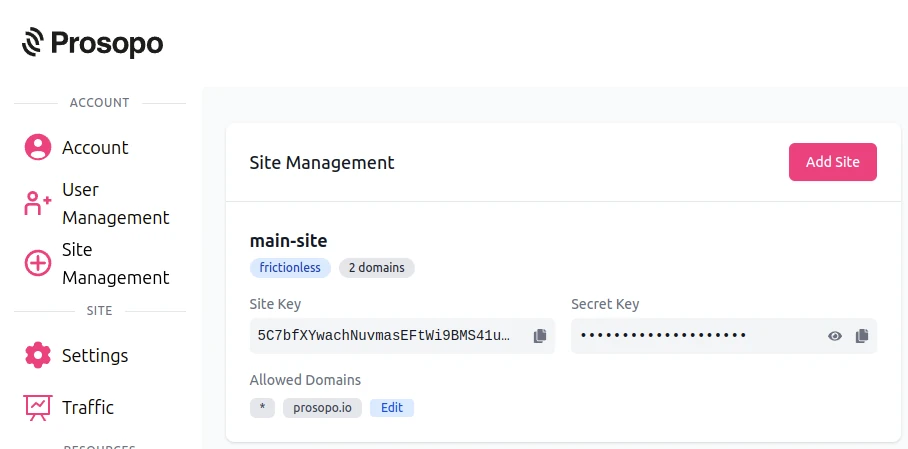
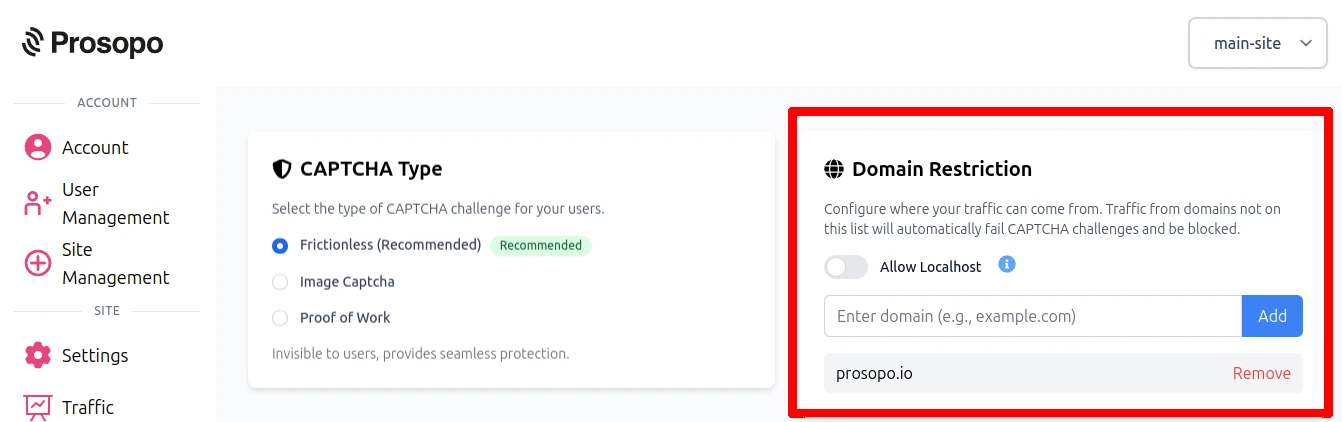
- Add your domain in the Prosopo dashboard, if it is not already present
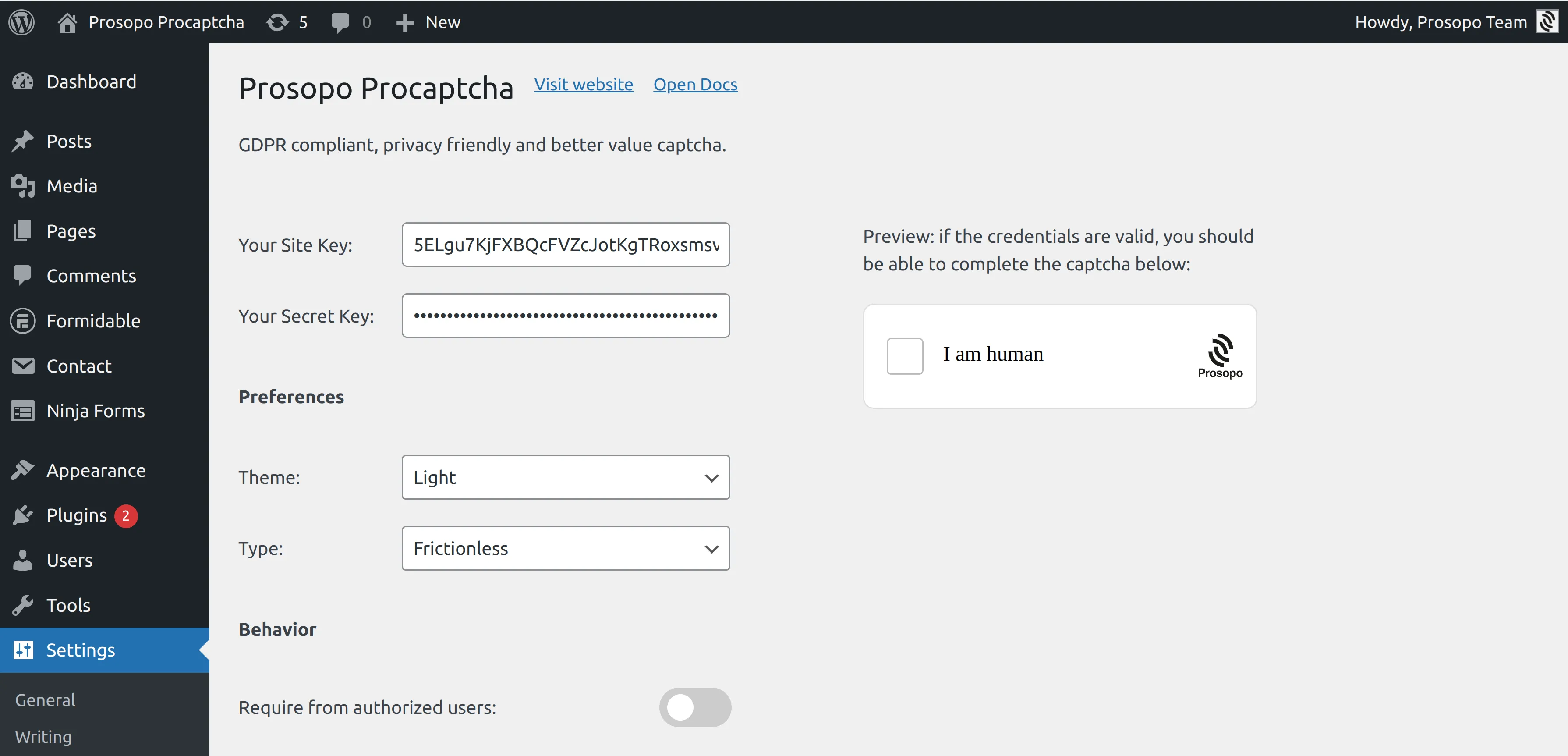
- Add your site key and secret key to the Prosopo WordPress plugin settings. You can find them in Site Management in the Prosopo dashboard.
Edit the page in Bricks, select the Form element, open Fields and add a new field. Set its type to Hidden and use
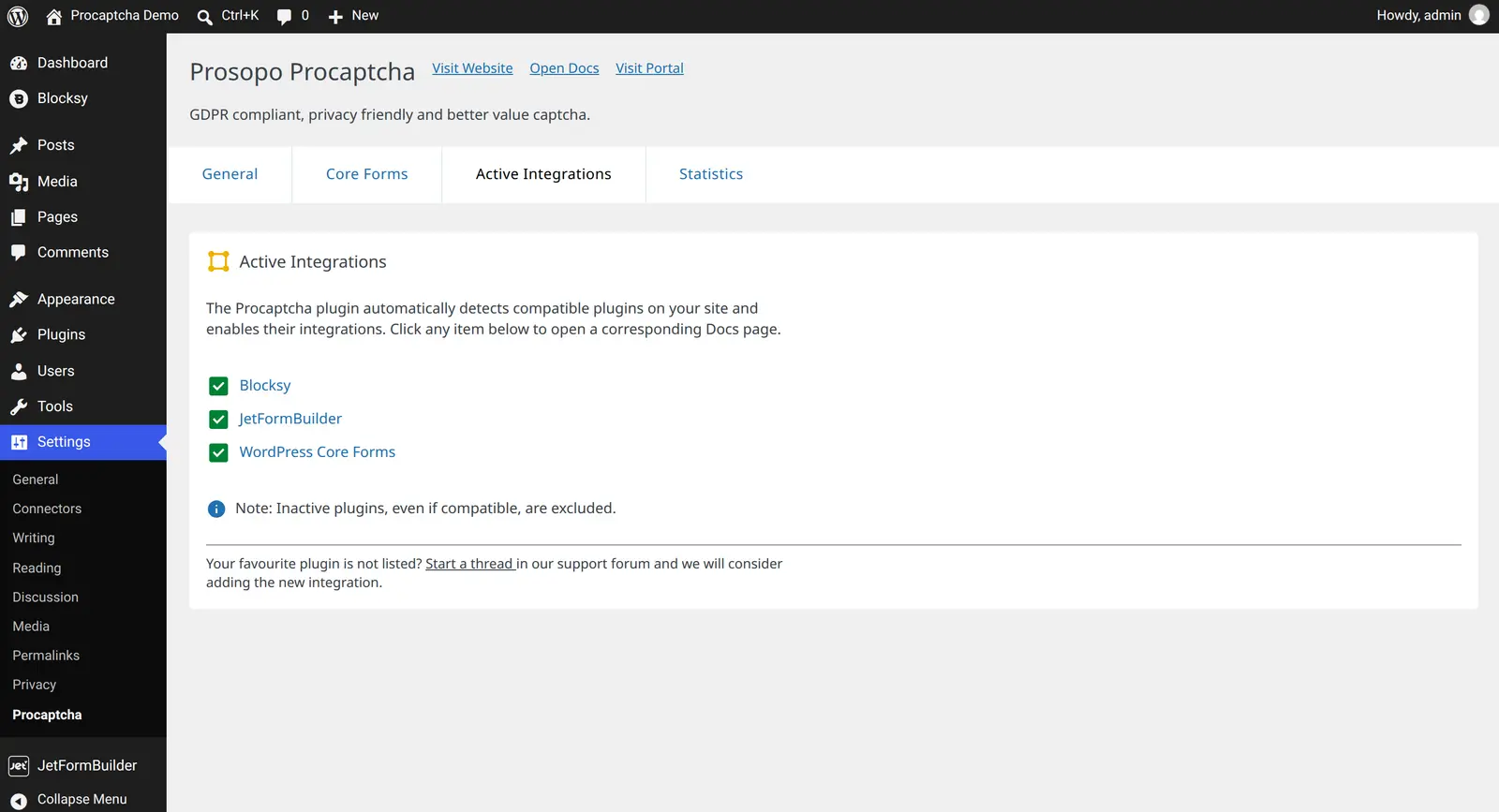
prosopo_procaptchaas the field label (or as its value, if your Bricks version does not show a label for hidden fields). That field is the marker: the Procaptcha widget replaces its input, so the token reaches the server as an ordinary Bricks form field and is verified before the form's actions run.To confirm the integration is picked up, open the "Active Integrations" tab of the Procaptcha settings and check that "Bricks" is listed. Bricks is a theme rather than a plugin, so the Procaptcha plugin detects it from the active template.
Save the page and open it as a logged-out visitor: the CAPTCHA appears where the hidden field was. A submission with a missing or invalid token is rejected with the Procaptcha validation message, shown in the form's normal error area.
Bricks 2.0 or newer is required. The integration reads the form markup through a filter that Bricks only added in 2.0, so on older versions the plugin leaves Bricks forms untouched.
For the full reference, see the Bricks integration guide in the Prosopo docs.
Ready to ditch Google reCAPTCHA?
Procaptcha is free for 10K requests a month. No credit card, no cookies.